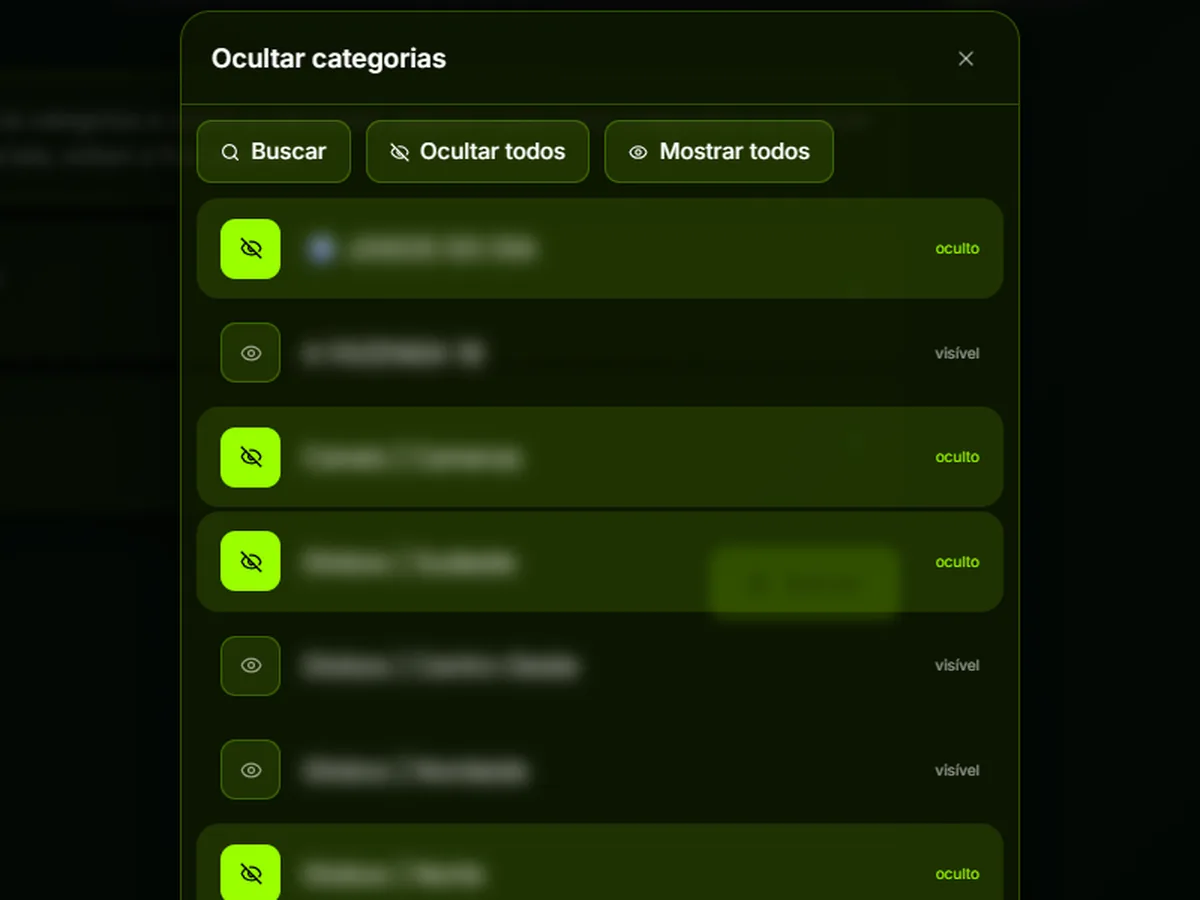
Football on Pan Player: featured matches and match-day tips
See featured matches on the home screen, open the app straight to Football, merge FHD/HD/SD streams and keep an eye on speed and the clock.
On match day, nobody wants to miss the opening minutes hunting for the channel that’s showing the game. Pan Player has a few features built for exactly this: featured matches on the home screen, a dedicated Football screen and settings that make switching quality and keeping an eye on your connection much easier.
One important point before we go on: Pan Player is a player only. It doesn’t broadcast matches, doesn’t store or host any content and doesn’t sell lists. Every channel comes from your own list, one that belongs to you or that you’re authorized to use. What the app does is organize that list and point you to where things are within it.
Featured matches on the home screen
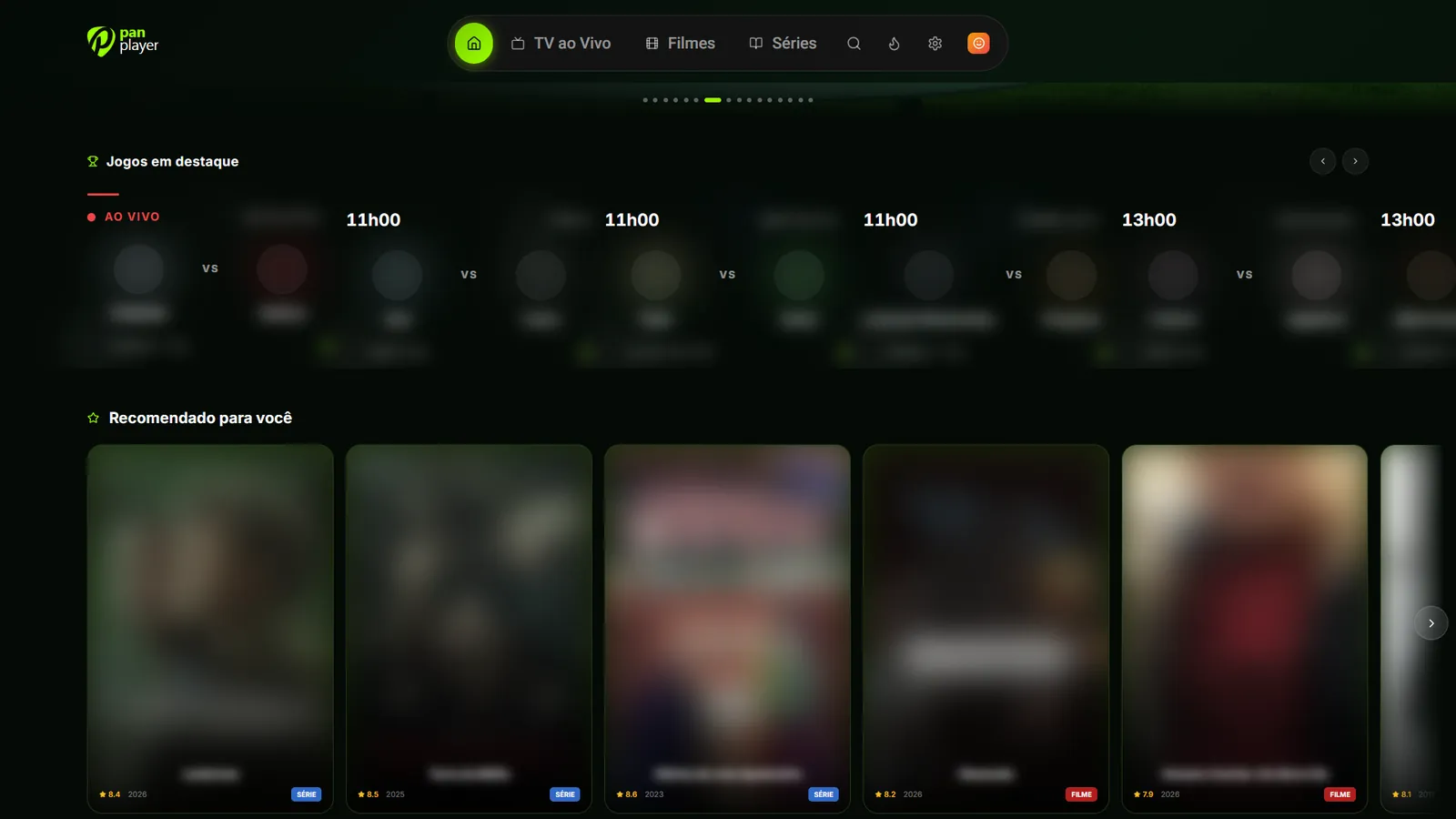
Right on the home screen there’s a Featured matches row. Each match shows three things:
- The kick-off time.
- The teams playing.
- The channel in your list that shows the match.
That last one is what saves you time. Instead of flipping through channels, you already know where to go. Because it points to a channel in your own list, what you see depends on what your list includes.
The Football screen
Besides the home screen row, Pan Player has a dedicated Football screen, available from the menu. It keeps football in one place, so you don’t have to dig through the rest of the catalog to get to it.
Open the app straight to Football
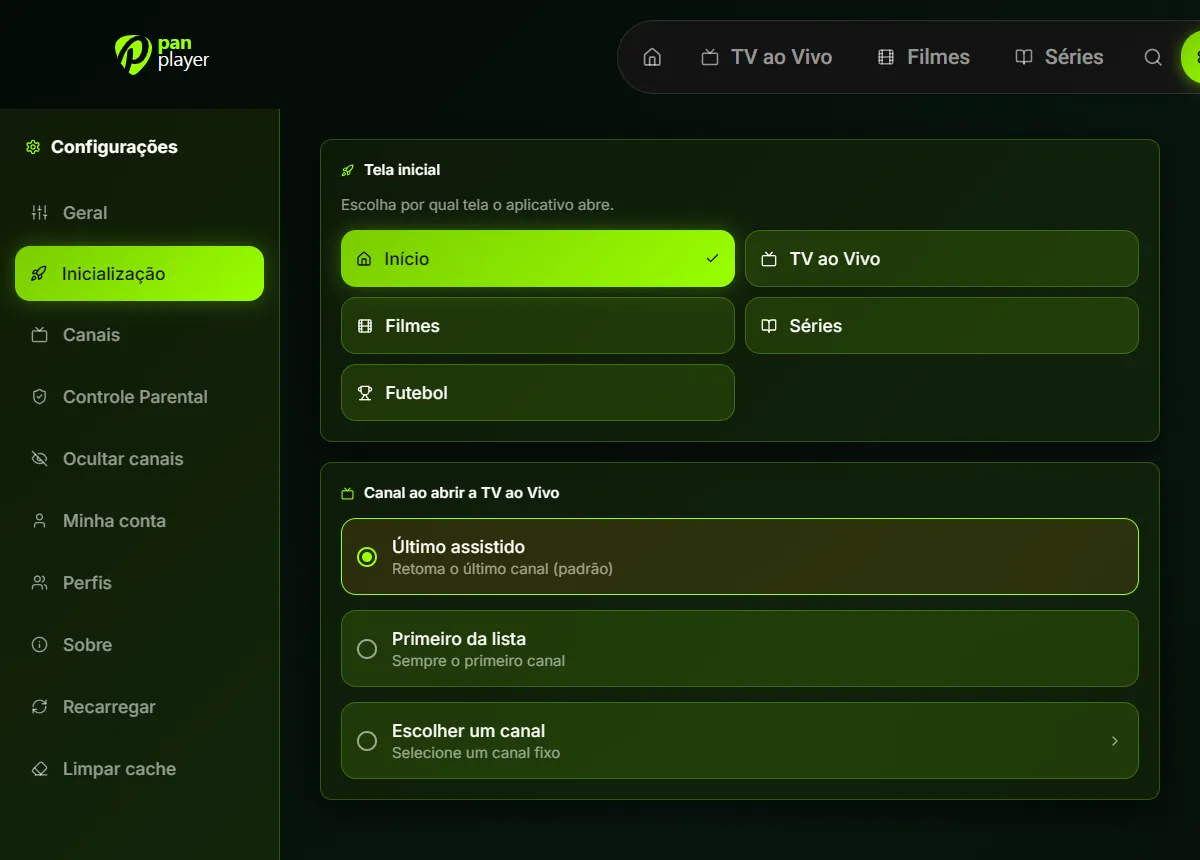
If football is the main reason you turn on the TV, you can have the app open directly on that screen:
- Open the app settings.
- Go to the start screen option.
- Choose Football.
Next time you open Pan Player, it starts right there. The other start screen options are Home, Live TV, Movies and Series, so you can switch back whenever you like.
In the same area you can also choose which channel Live TV opens with: the last one you watched (the default), the first on the list or a specific channel.
Merge stream qualities
Many lists carry the same channel several times in different versions, such as “Channel FHD”, “Channel HD” and “Channel SD”. That makes the list long and confusing, especially when you’re trying to find the match in a hurry.
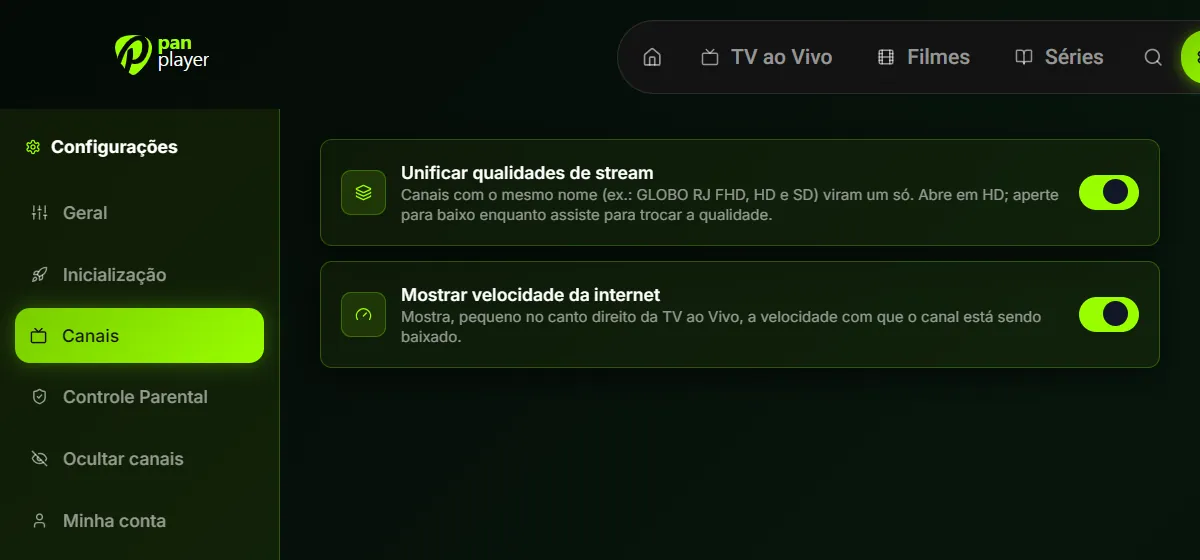
With merge qualities turned on in the channel settings, those versions become a single channel in your list. Here’s how it works:
- The channel opens in HD, which is usually a good balance between picture and stability.
- To switch quality while watching, press the down arrow on your remote and pick FHD, HD or SD.
In practice, if the picture starts to stutter, you drop to SD without leaving the channel. If your connection has room to spare, you move up to FHD.
Internet speed indicator
When a stream freezes, the first question is always the same: is it the list or the home internet? Pan Player has an optional internet speed indicator that you turn on in the channel settings. With it on screen, it’s easier to understand what’s going on and decide whether to switch to a lower quality.
On-screen clock
Another optional setting is the on-screen clock. It’s handy for checking how long until half-time, or whether the next match is about to start, without leaving the stream. When it’s on, the clock also shows in the movie and series player.
A match-day checklist
Putting it all together, here’s a setup that works well if you follow football:
- Set Football as your start screen.
- Turn on merge qualities to tidy up your channel list.
- Enable the speed indicator and the clock.
- When it’s time for the match, check Featured matches to see which channel in your list is showing it.
- If the picture stutters, press the down arrow and pick a lower quality.
All of this works with just the arrow keys and OK on your remote. To see the other Live TV features, like now-playing program info and the most-watched shortcut, visit the features page. Common questions are answered in the FAQ.
Getting started
If you’re not using Pan Player yet, you can try these features with your own list free for 7 days. Create your account, set the app up before the next match and see whether match day gets simpler.