Channel regionalization: see only the regional channels for your state
Turn on regionalization, pick your Brazilian state and your free-to-air channel list keeps only your region's versions, plus a São Paulo backup.
In Brazil, the big free-to-air TV networks don’t broadcast a single feed. Each one has several regional versions, one per state or region, with local news, your city’s weather and your area’s commercial breaks. That’s why many IPTV lists carry dozens of versions of the same free-to-air channel, spread across several categories.
If you live in one state, you only need one or two of those versions. The rest is extra scrolling with the remote. Channel regionalization fixes that: you pick your state and Pan Player shows only the regional channels that make sense for you.
What regionalization does
With the option on:
- Only your state shows up. Regional versions from other states leave the channel list.
- A backup is always at hand. The São Paulo capital version keeps showing for everyone. If your regional feed goes off the air, you can switch to it without searching.
- National channels stay. National versions, which don’t belong to any state, aren’t hidden.
- Fewer repeated categories. When your list splits the same network into several categories by region, they become a single category.
- Search follows the same rule. Regional channels from other states don’t show up in the results either.
Keep in mind that Pan Player is only a player. It doesn’t store or host any content; everything comes from your own list, yours or authorized. Regionalization doesn’t delete anything from your list; it only organizes what appears on screen.
How to turn it on
- Open Pan Player’s settings.
- Go to Channels.
- Turn on Channel regionalization (Brazil only).
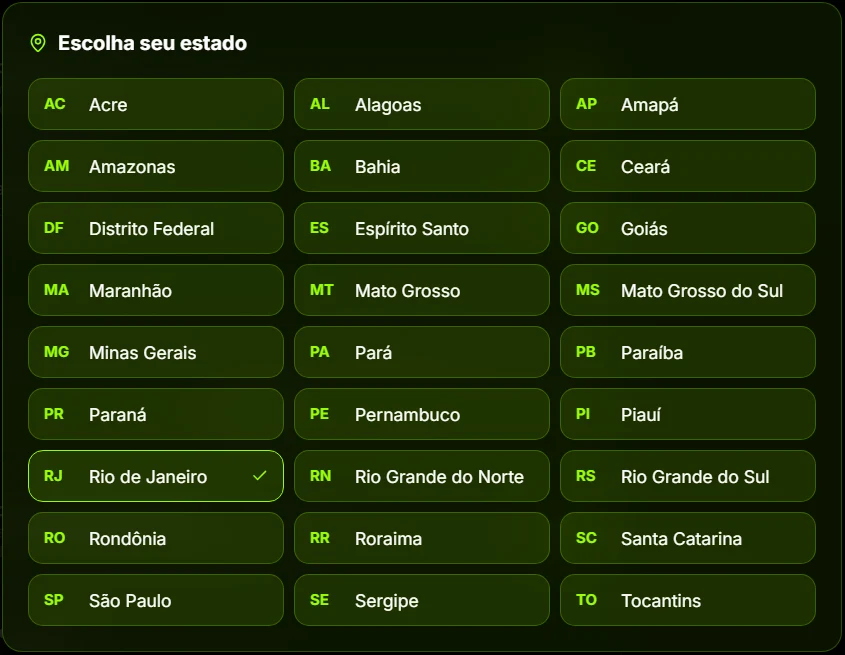
- Pick your state from the list. If you turn the option on without choosing a state, the list opens by itself.
That’s it. The next time you open Live TV, the list is already regionalized. To change your state, go back to Your state. To see everything again, turn the option off.
Like the rest of the app, it all works with the arrows and the OK button on your remote.
It’s set per device
Regionalization is saved on the device, not in the profile. That makes sense: the living room TV is in one place, so every profile on that TV sees the regional channels for the same state. On another device, you set it up again however works best there.
How the app knows each channel’s state
Pan Player reads the name of each regional channel in your list and recognizes the state abbreviation, the city or the local station’s name. That’s how it sorts out which state each channel belongs to without you marking anything.
If a channel’s name doesn’t point to a state, it keeps showing. The idea is to never hide by mistake a channel that might be yours.
Pair it with other features
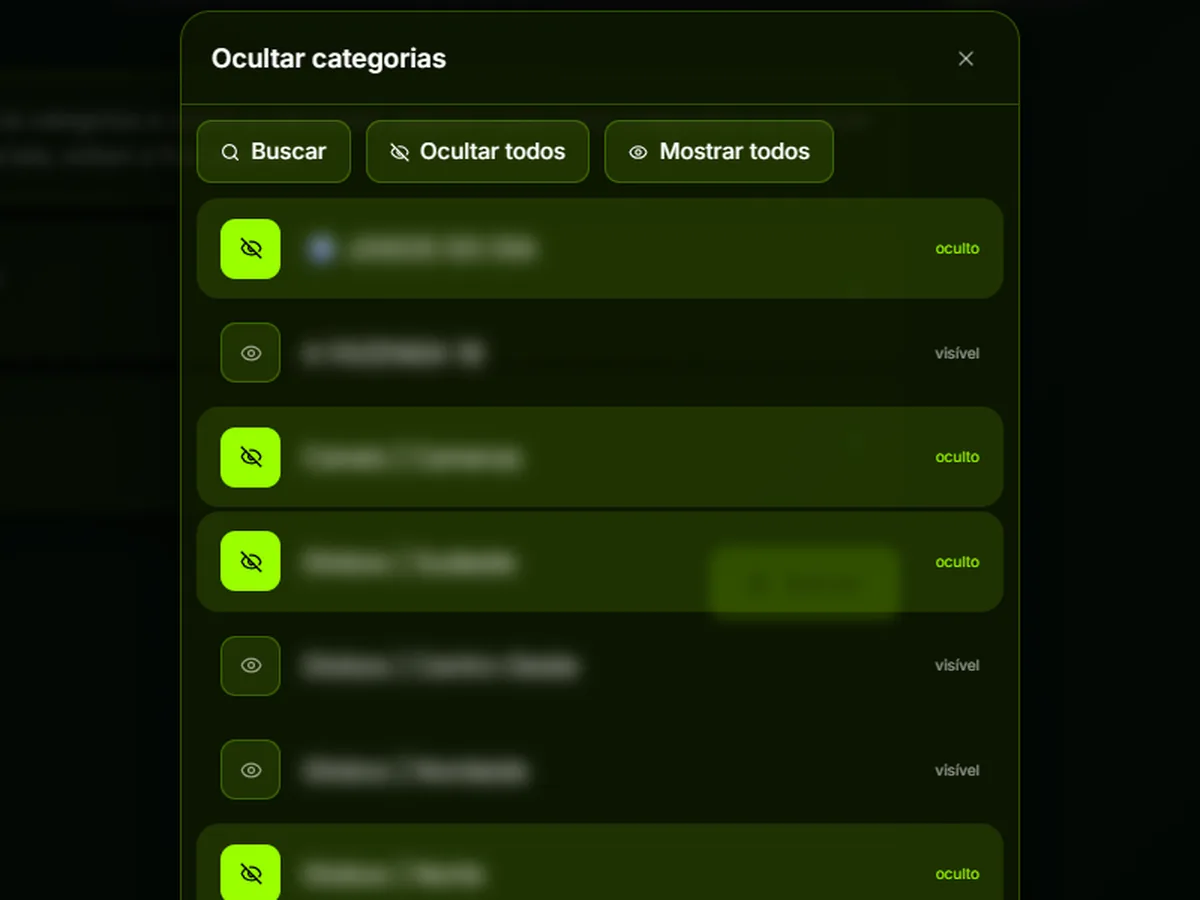
- Hide categories and channels. To make the list even shorter, hide whatever is left. See hide categories and channels.
- Fast startup. With a regionalized list, it’s easy to pick the channel Live TV opens with. See fast startup.
More questions? Check our FAQ.
Try it
The 7-day free trial includes every feature, channel regionalization included. Create your account on the register page, pick your state and see your list the way it should be.